





This guide explains how to add an Email Hosting mailbox to a mail app. Every app uses the same details.
The details to use
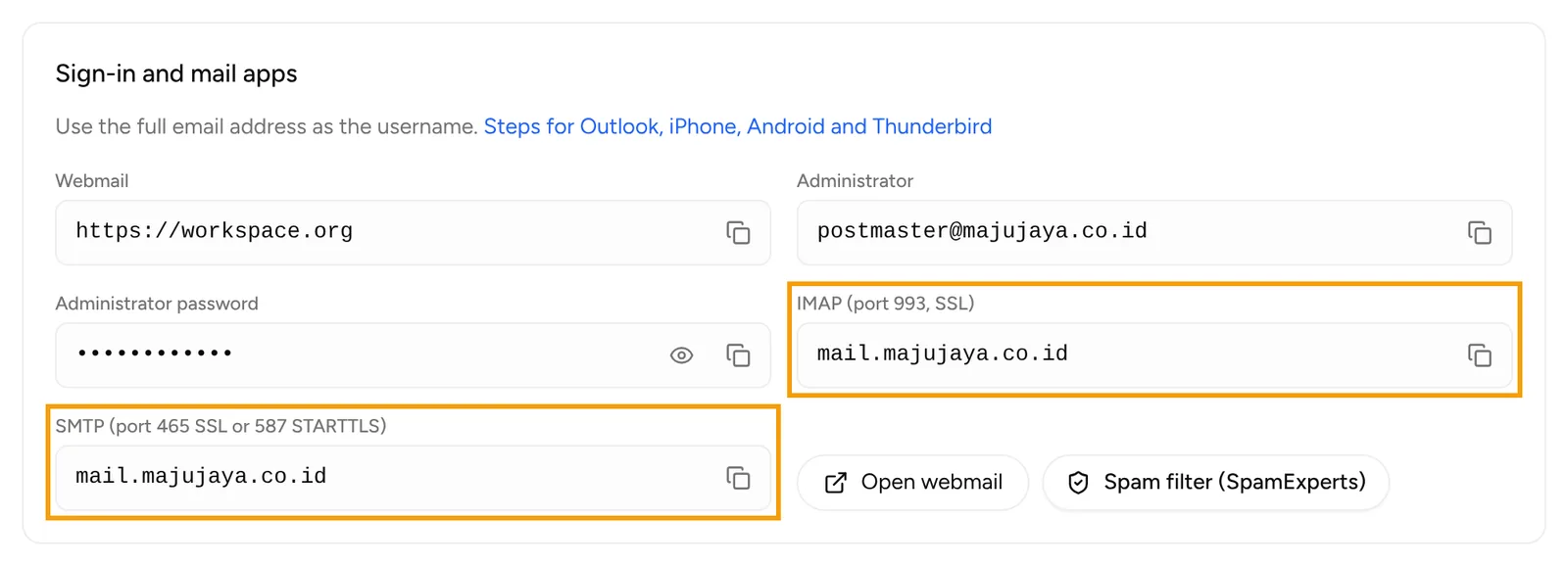
Open your Email Hosting service in the client area, the Email tab, section Sign-in and mail apps. It shows the IMAP and SMTP server names for your domain.
| Setting | Value |
|---|---|
| Username | The full email address, such as budi@yourdomain.com |
| Password | That mailbox's password |
| Incoming server (IMAP) | The IMAP server name on the Email tab, port 993, SSL/TLS |
| Incoming server (POP3) | The same server name, port 995, SSL/TLS |
| Outgoing server (SMTP) | The SMTP server name on the Email tab, port 465 SSL/TLS or 587 STARTTLS |
| SMTP authentication | On, with the same username and password |
Choose IMAP if the mailbox is opened on more than one device. The inbox stays on the server and syncs to every device. POP3 downloads mail to a single device.
Forgot a mailbox password? Open the Email tab, click the edit icon next to the mailbox, enter a new password and click Save.
Outlook on Windows
New Outlook and Outlook for Windows:
- Open Settings (the gear icon), then Accounts and Email accounts.
- Click Add account, enter the email address and click Continue.
- If Outlook does not find the settings, choose IMAP and open the advanced settings.
- Enter the password, the IMAP server on port 993 with SSL/TLS, and the SMTP server on port 465 with SSL/TLS.
- Click Continue until the account appears.
Classic Outlook: open File and then Add Account, open Advanced options, tick Let me set up my account manually, choose IMAP and enter the details above.
iPhone and iPad
- Open Settings, find Mail and open Mail Accounts. On older iOS versions the menu is Settings, Mail, Accounts.
- Tap Add Account, then Other and Add Mail Account.
- Enter your name, email address, password and a description, then tap Next.
- Choose IMAP. Under Incoming Mail Server and Outgoing Mail Server, enter the server name, the full email address as the user name, and the password.
- Tap Next, then Save.
If the iPhone cannot connect, open the account under Mail Accounts and make sure Use SSL is on and the outgoing port is 465.
Android (Gmail app)
- Open the Gmail app, tap your profile picture and then Add another account.
- Choose Other, enter the email address and tap Manual setup.
- Choose Personal (IMAP) and enter the password.
- For the incoming server, enter the IMAP server name, port 993, security type SSL/TLS.
- For the outgoing server, enter the SMTP server name, port 465, security type SSL/TLS, and turn on Require sign-in.
- Finish by naming the account.
Menu names can differ slightly in a phone's own mail app, but the details are the same.
Thunderbird
- Open the menu, then Account Settings, Account Actions and Add Mail Account.
- Enter your name, email address and password, then click Configure manually.
- Incoming: IMAP, the IMAP server, port 993, SSL/TLS, authentication Normal password.
- Outgoing: the SMTP server, port 465, SSL/TLS, authentication Normal password.
- Use the full email address as the username for both, then click Done.
If something goes wrong
- Sign-in fails: the username must be the full email address, and the password is the mailbox password, not your client area password.
- Mail comes in but cannot be sent: make sure SMTP authentication is on. If your network blocks port 465, use port 587 with STARTTLS.
- Mailbox disabled: open the Email tab and check that the mailbox is not marked Disabled.
- The mailbox uses two-factor sign-in: create an app password in webmail and use it in the mail app.
For other help, open Help and then Tickets, click New ticket, choose Technical support and pick your email service.