






This guide explains the order of steps for moving from your old email provider to Email Hosting, so no mail is lost on the way. If you would rather not do it yourself, open a ticket after ordering and our team moves your mailboxes over IMAP.
The safe order
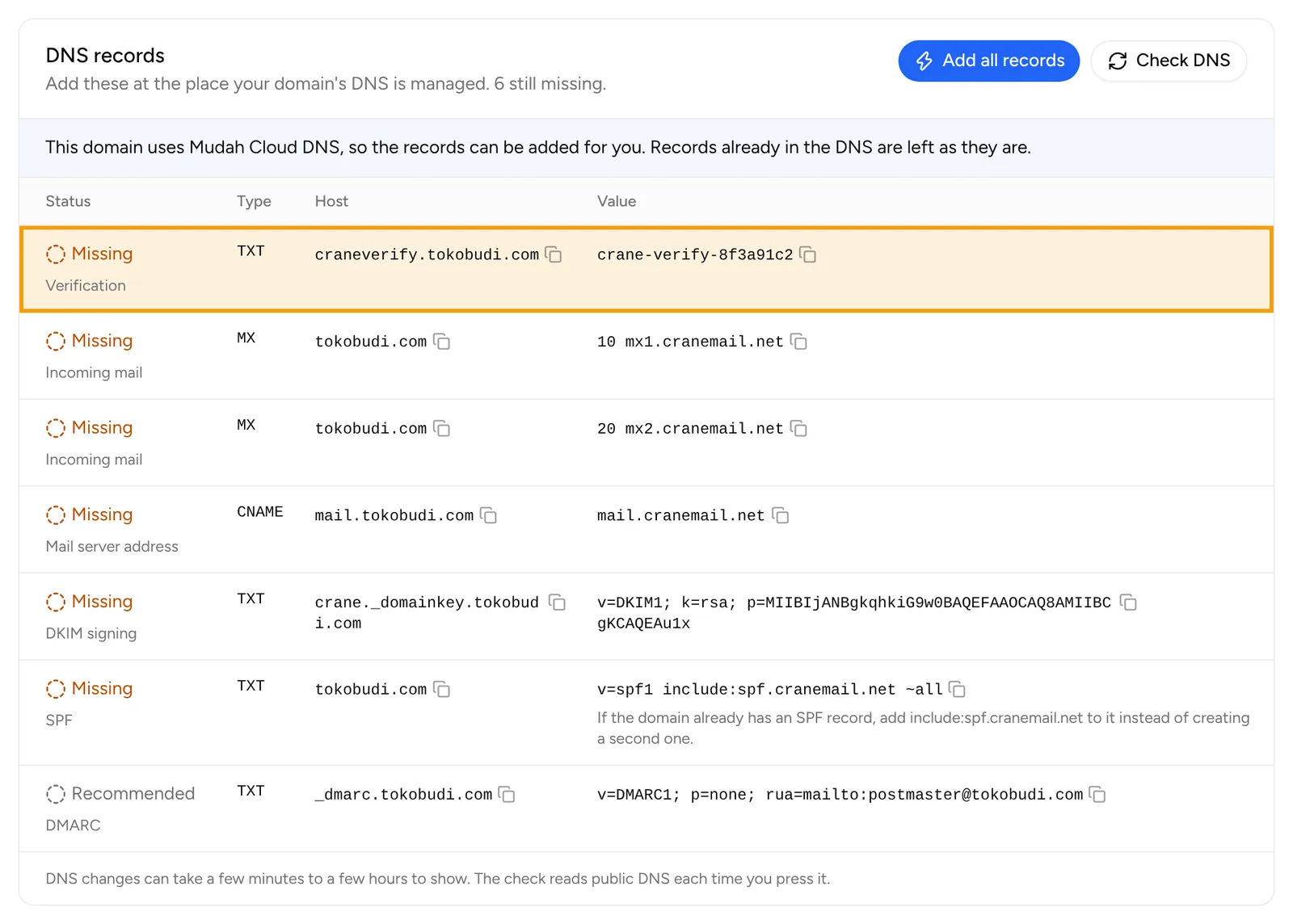
- Add only the verification record first. On the Email tab, add the Verification TXT record to the domain's DNS and click Check DNS. Leave the MX records alone for now, so mail keeps arriving at the old provider.
- Create the same mailboxes. Once the domain is verified, create mailboxes with the same addresses as at the old provider.
- Copy the old mail with one of the ways below.
- Switch the MX, SPF and DKIM records. Add the records from the Email tab and remove the old MX records. From now on new mail arrives at Email Hosting.
- Copy once more after 1 to 2 days, for mail that still reached the old provider while DNS was switching.
Copying: Thunderbird
Thunderbird can open the old and the new account together and move mail between them.
- Add the old account to Thunderbird with IMAP. The server details come from the old provider.
- Add the new Email Hosting account. See the guide on setting up email in mail apps.
- In the old account, open the folder to move, such as Inbox. Select all messages with Ctrl+A (Cmd+A on a Mac).
- Right-click, choose Copy To, then the destination folder in the new account.
- Repeat for other folders such as Sent and Archive. Wait for the copy to finish before closing Thunderbird.
From Gmail
- Make sure Gmail's IMAP access is on. In Gmail on the web, open Settings, See all settings, tab Forwarding and POP/IMAP. Newer accounts have IMAP on already.
- If the Google account uses 2-Step Verification, Thunderbird can sign in through the Google sign-in window. If another app asks for a password, create an app password in the Google account security settings.
- Gmail labels show up as folders. A message with several labels can be copied more than once.
From cPanel or another host
- The IMAP server is usually
mail.yourdomain.comor the hosting server's name. See Connect Devices in the old cPanel for the settings. - If the domain already points to Email Hosting and
mail.yourdomain.commoved with it, use the old hosting server's name as the IMAP server.
Contacts and calendars
Export contacts from the old provider as a vCard (.vcf) file and calendars as an .ics file, then import them under Contacts and Calendar in webmail.
If something goes wrong
- New mail still arrives at the old provider: the old MX records are still there or DNS has not finished switching. Check on the Email tab with Check DNS.
- The copy stopped halfway: run it again for the same folder, selecting only messages not yet in the new account.
- Storage is full: see the usage on the Email tab. Upgrade the package from the Change package tab if needed.
For help moving your email, open Help and then Tickets, click New ticket, choose Technical support and pick your email service.